
How to upload audio for voice analysis
Updated on: Fri Nov 13 2026
Use Upload Audio to analyze a voice memo, an older practice clip, or a recording you made in another app.
Choose a file and run the analysis
-
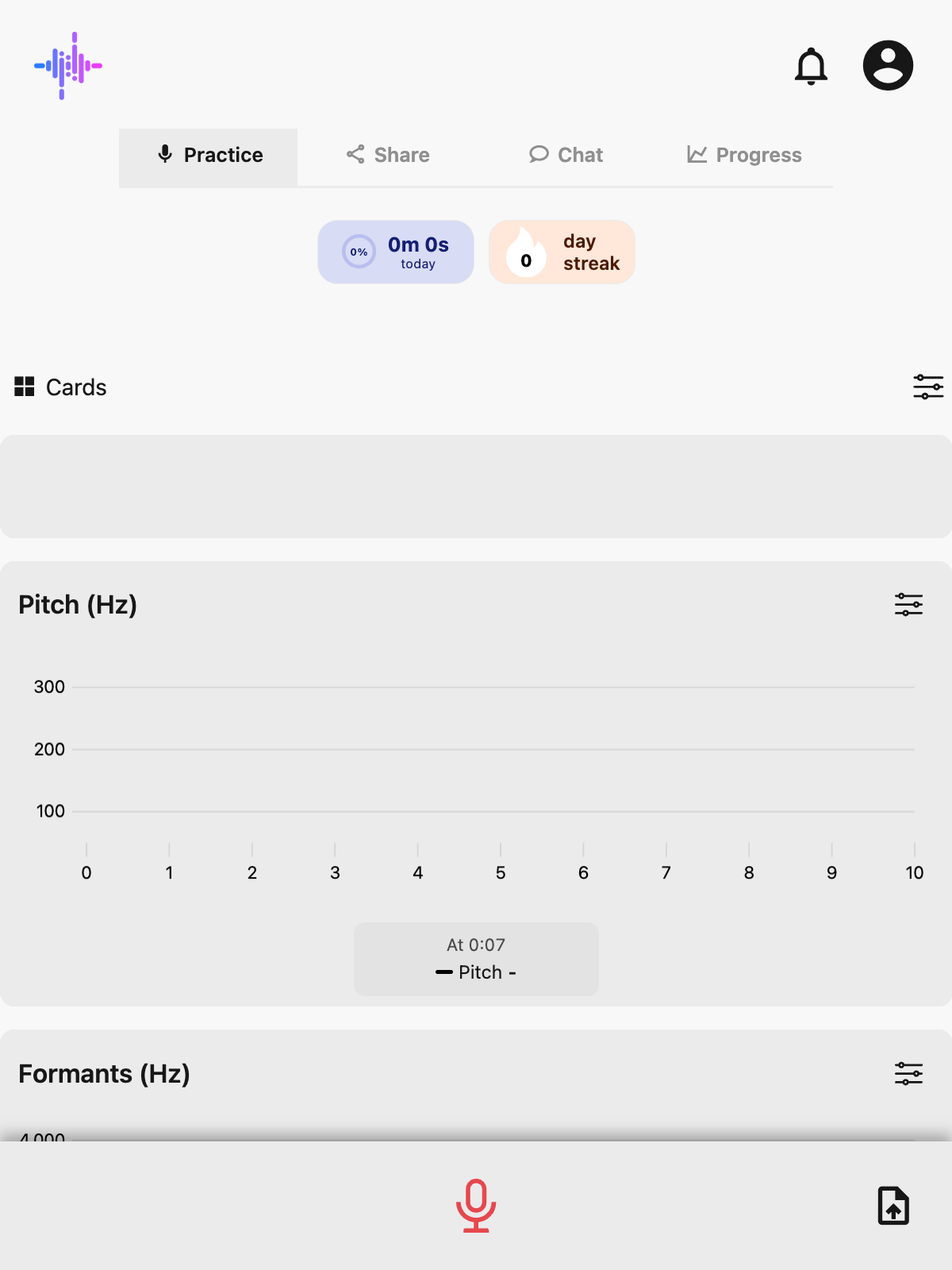
Sign in to Genderfluent and select the Upload audio icon at the bottom right of the main screen. If a recording is already open, select the three-dot menu in the same spot, then choose Upload.
-
On iOS or Android, tap Choose audio file and select your recording. On the web, click Browse files or drag your file onto the Upload Audio screen.
-
Choose the feedback you want. Pitch is always included. You can turn Formants, Volume, and Gender estimates on or off. Turn on Speech to text if you’d like a transcript.
-
Select Analyze. When analysis is complete, you’ll return to the main screen, where you can play the recording and review your feedback. To keep the recording in your account, open the three-dot menu and select Save.
If you have trouble uploading
- The file won’t open. Try exporting the recording as an MP3, WAV, or M4A file, then select it again.
- Analyze is unavailable. Stop any active recording and wait for it to finish preparing. Free accounts can analyze up to five uploads per day. The upload screen shows when your allowance resets.
- The feedback is sparse. Try a clip with clear speech and less background noise.